When you browse the web, websites set cookies. Annoyingly, thanks to GDPR, they often also show you little overlays that tell you they’re using cookies, or ask you about which cookies you’re willing to accept. And to be clear, browser cookies are the least exciting kind of cookies that exist, outside of oatmeal raisin, which are garbage.
![Settings for [current domain]](/uploads/2026/08/screenshot-2026-08-26-at-10-29-33-pm-d0aefc3b.png)
Safari has a cool menu item that appears per site in the Safari menu. Settings for (current domain) shows up there. The settings you actually get to see there, though, are stupid. “Always use Reader mode,” which I imagine almost no one uses ever, tops the list.
What that menu should show (but doesn’t) is the cookies in use on that particular website.
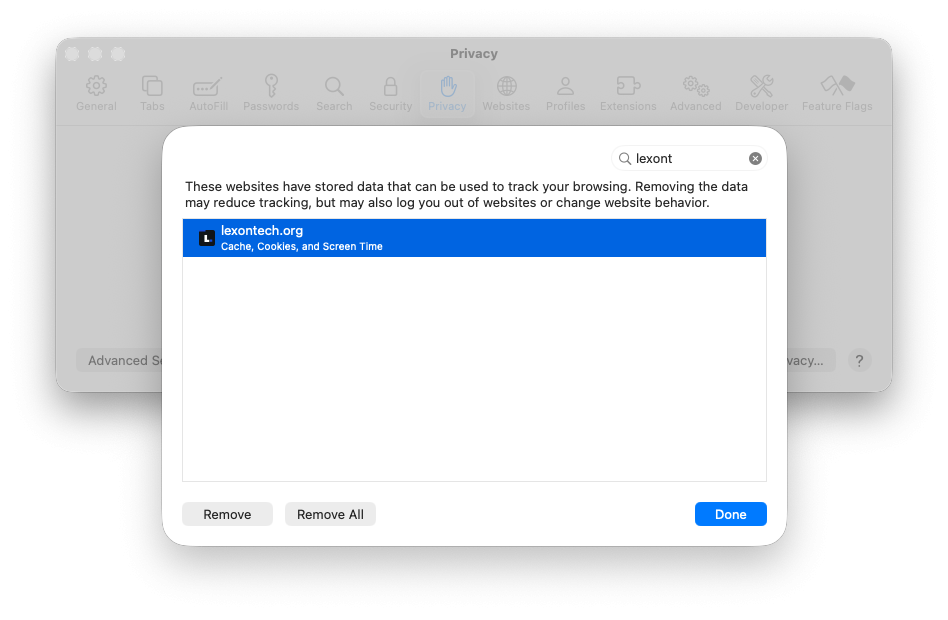
If instead you go to Safari -> Settings -> Privacy -> Manage Website Data, you can browse the websites that have data stored in Safari. I wish it defaulted to the site you were on when you opened that Settings window; it doesn’t. But you can type a search into the filter box and see… almost nothing.
You get a button to Remove the Cache, Cookies, and Screen Time data stored for the domain(s) selected. (Disappointingly, even if you have just one site selected, you get two buttons: Remove and Remove All. In this context, with only one site selected, those buttons do the same thing.)

It should be easier to delete just the cookies, if that’s all you want to do. It’s not. It should be easier to see the cookies stored by the website. That’s not easy either. You have to turn on Safari’s Develop menu and open the Web Inspector to see cookie details. It’s a lot of clicks.
Most users don’t need to see their cookie contents most of the time, so I get why this doesn’t get more love from the Safari team. But they’re basically giving a Donkey Kong mallet to hammer away everything with that Remove option.