Sindre Sorhus makes a slew of apps. His site puts the count at 63. Most are simple, which I mean as a legitimate compliment: They’re singularly focused, do what you expect, and are straightforward to use.
Sorhus is a full-time open-source developer. He quit his office job in 2014 to backpack around Southeast Asia while writing open-source code. He maintains more than 1,000 npm packages, which is the kind of number that sounds made up until you look at his GitHub. These days, much of his energy goes into Mac apps, written in Swift. His site also keeps a running tally of six million users and 10,000 answered support emails. I’m guessing he’s at least a little tired.
Most of Sorhus’s apps are free. The ones that cost money are one-time purchases, and affordable.
I’m not going to break down all 63 apps. But here are a few worth highlighting:
Mailway
Mailway ($4) fixes a tiny annoyance: You click an email address on a web page, and your Mac “helpfully” launches Apple Mail, even though you handle your email needs in a Gmail browser tab. Mailway makes itself your default email app and then routes every mailto link wherever you actually want it to go — Gmail, Fastmail, Outlook, a third-party app, whatever. You can add rules, too: Addresses at your work domain open in one place, everything else in another. The app doesn’t even stay running. It launches when you click a link, hands it off, and quits.
Menu Drop
Menu Drop (free) puts an AirDrop target in your menu bar. Drag a file, a folder, a link, or some selected text onto the icon, and the AirDrop picker appears. That’s it. It’s faster than digging through the Share menu, and it works. (It requires macOS 26.)
Simple Color Palette
Simple Color Palette (free, for Mac, iPhone, iPad, and Vision Pro) lets you create, view, and edit color palettes in an open file format Sorhus designed himself. It imports Adobe Swatch Exchange files, copies colors as hex, RGB, or OKLCH, and adds Quick Look previews for palette files. He’s explicit that it’s not a palette organizer or a palette generator; it’s a palette editor, period.
Googly Eyes

Googly Eyes (free) puts a pair of googly eyes in your menu bar. They follow your cursor around the screen. They blink when you click. There’s no point. It reminds me of similar utilities from the System 7 days. Sometimes, it’s fun to have an app whose only aim is silliness and joy. The App Store reviews are a treat, too. My favorite, in its entirety: “why are they all watching me. i did nothing wrong. it was an accident.”
Supercharge
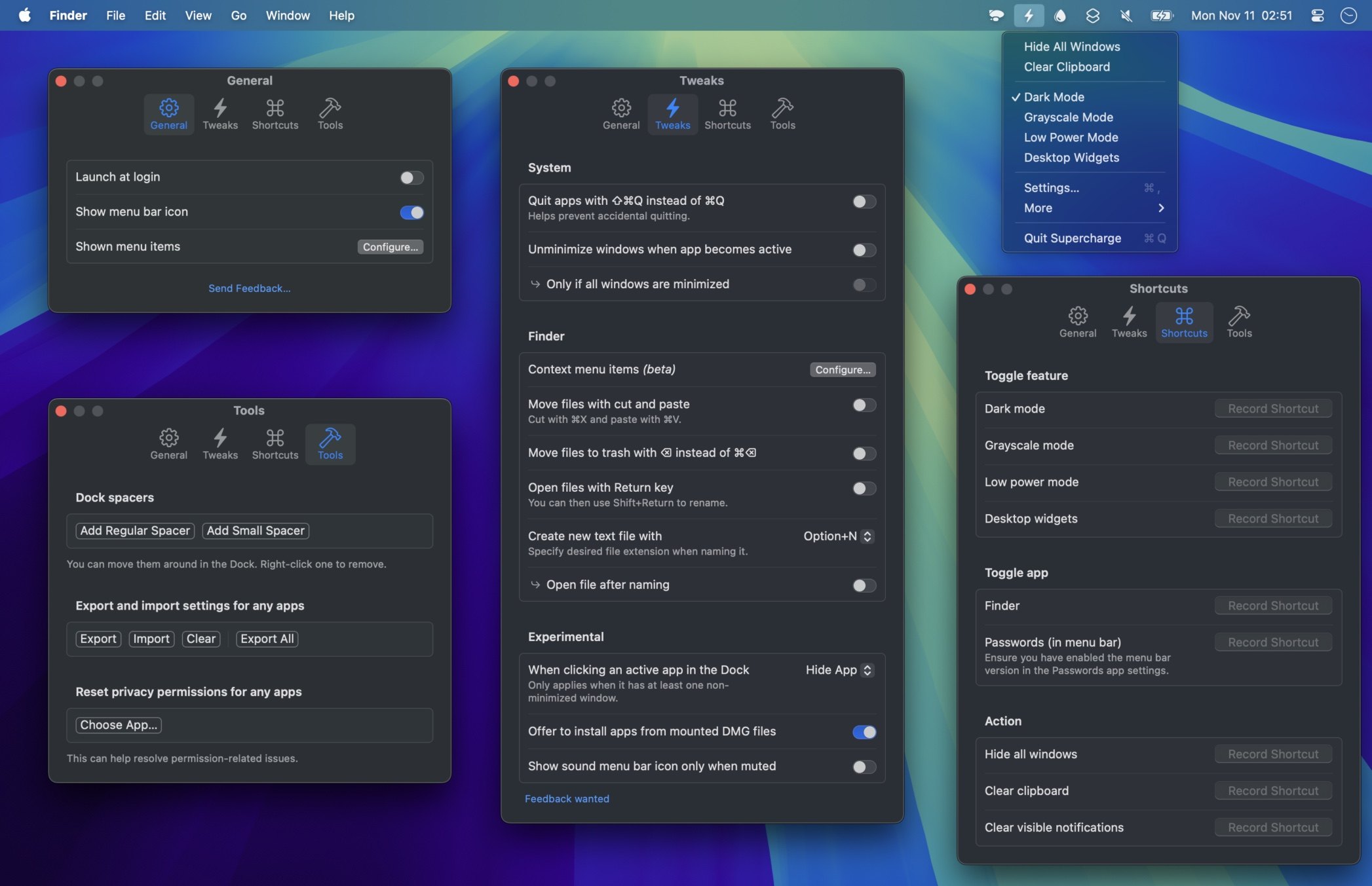
Supercharge is in the category of Swiss Army knife Mac tools, and it does a lovely job with a few nitpicky features you just might want to enable. Every feature is opt-in, so you flip on only the stuff you care about. Option-N to create a new blank text file in the Finder, for one. You can make the red window button quit the app instead of merely closing the window, or require Shift-Command-Q to quit so a stray Command-Q doesn’t wreck your progress. You can clear every notification with a keyboard shortcut, and stop the Music app from launching every time you tap Play on your keyboard. There’s a tool that tells you which app has claimed a global keyboard shortcut. There’s screen OCR. There’s a QR code scanner. There’s a lot.
Supercharge is $20, one time, with a free trial, and it’s on Setapp as well. It requires macOS 26 or later.
Scratchpad
Scratchpad is another entry in quick note taking. I take a lot of quick notes. It’s a single, always-available, plain-text note that lives in your menu bar (or the Dock; your call), with a hotkey to summon it. On the iPhone, it can live on your Lock Screen or in Control Center, and iCloud sync is there if you want it. It keeps local backups, too. It’s $12, one time, and the purchase covers Mac, iPhone, iPad, Apple Watch, and Vision Pro.
Second Clock
Second Clock (free) is very clever when you want just one other time zone always visible. It puts a second clock in your menu bar, and you can stick a flag emoji in front of it so you remember whose clock it is. That’s it. Want more than one? Sorhus offers extra builds with different identifiers so you can run several at once, which is a delightfully brute-force solution. Or you could use a certain other menu bar app that shows what time it is around the world. I mean Time To Go. I made it.
And dozens more…
You’ll get it when you browse his site: These are tools to make you speedier, more productive, and to help you bend your Mac (or other Apple device) to your will.
Check out Sindre’s apps.