Indie developer spotlight: Chest organizes the macOS 27 menu bar for free, courtesy of boringBar
A free, open-source Bartender alternative that works on Golden Gate, from the makers of a taskbar that’s anything but boring
I’m cautious about adding menu bar utilities on my Mac. I don’t want things getting crowded up there. And when the utilities there do stack up, I turn to third-party utilities to keep things better organized. For years, the fix was Bartender, or lately the free and open-source Ice. You hid the icons you didn’t care about behind a divider, and life was good.
Then came macOS 27 Golden Gate. Apple rebuilt the menu bar as a single window, instead of one tiny window per icon, which meant the trick every menu bar manager relied on (shove the icons off the edge of the screen) stopped working overnight. Apple’s own answer is a « button that swallows whatever doesn’t fit, plus a list of switches in System Settings. Ice has been broken since June, and hasn’t seen a release since September of 2025. Bartender rebuilt itself as Bartender 7. And a tiny new app called Chest showed up in October to do the job for free.
Chest is the app I want to tell you about. boringBar is the app Chest wants to tell you about. I’ll cover both, because that’s the kind of guy I am.
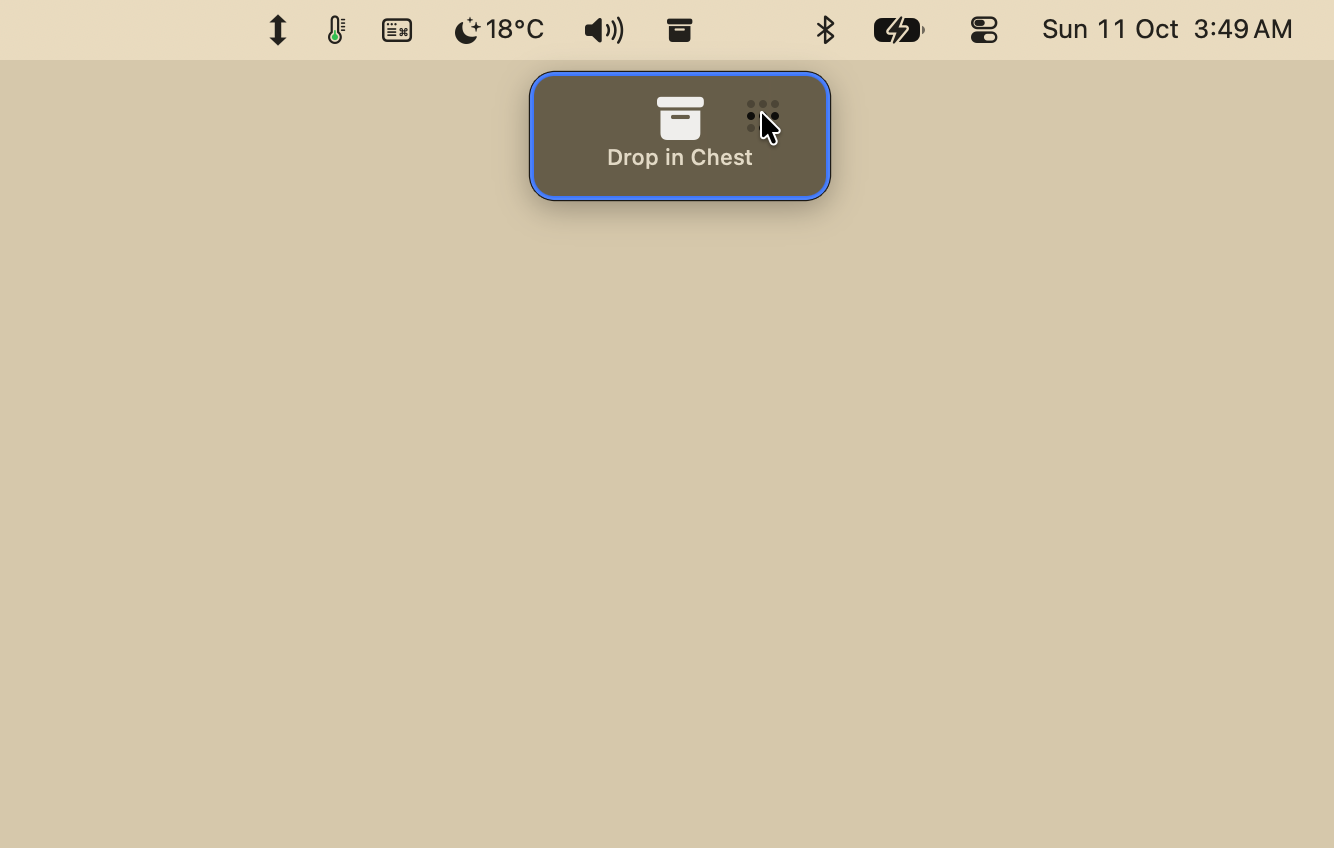
Click Chest’s dot and the drawer opens, holding the icons you stashed.
What Chest does
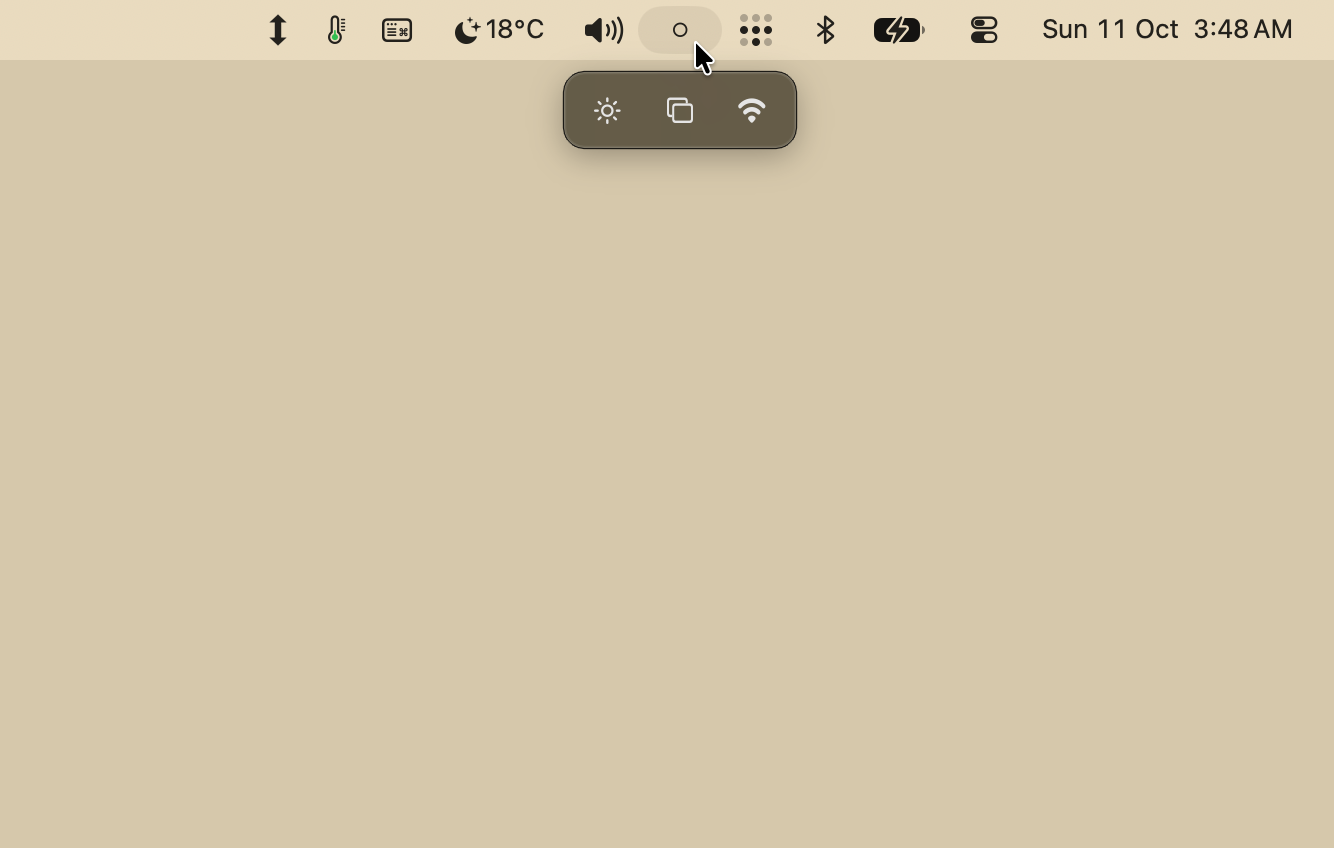
⤢Hold ⌘ and drag an icon onto the chest to put it in the drawer.
Chest puts a single dot in your menu bar. Hold ⌘ and drag an icon to the left of the dot, and it disappears while its app keeps running. Click the dot, and everything you’ve hidden comes back, right where you left it. Click again and it’s gone.
The second feature is the one that gives the app its name. Hold ⌘ and drag an icon onto the little chest that appears under the dot, and the menu bar icon goes into a drawer. Click the dot and the drawer opens beneath it; click an icon in the drawer and its menu opens, just as if it were in the bar. It’s for the stuff you use now and then (Screen Mirroring, Display, Wi‑Fi) but don’t need hogging precious menu bar space all day. The drawer wraps into rows of ten and holds as many icons as you need it to.
The clever bit is how Chest hides things. Instead of pushing icons off-screen, it flips the same switches you’d find under System Settings › Menu Bar › Allow in the Menu Bar. That means Chest can stash most of Apple’s own icons, too: Spotlight, Wi‑Fi, Bluetooth, AirDrop, Focus, Sound, Now Playing, Weather, and more. (Time Machine, VPN, and Battery can’t go in the chest yet, and the clock and Control Center will always stay put.) When you open a system item from the drawer, it pops back into the menu bar while its panel is open, then tucks itself away again.
A few other things I appreciate: Chest hides icons app by app, quitting it puts every icon back where it was, and it asks for very little. It needs Accessibility, plus permission to read two files macOS keeps in protected folders: the Allow in the Menu Bar list, and the file that stores your menu bar order. Chest opens a standard Open panel on each with the file already selected; you click Allow, and that’s it. No Full Disk Access. No accounts, no analytics, no ads. The only network connection it makes is a daily check for updates, and it asks before installing any such updates.
I’ve paid for Bartender. But Bartender in 2026 is a different beast from the little utility I bought. It’s owned by a company called Applause Group, which took it over in 2024 and initially didn’t tell anyone, which went over about as well as you’d expect. Bartender 7, the Golden Gate version, is $25, one time. Bartender Pro, with the notch-expanding Top Shelf and all future upgrades, is $20 a year. The lifetime Mega Supporter tier is $80. And Bartender does a lot: the Bartender Bar, triggers that show icons when you unplug the power adapter, widgets, a Command Bar with clipboard history, menu bar styling, profiles, Shortcuts support. If you want all of that, you should buy it. It’s a good app.
But if what you want from Bartender is “hide these plentiful icons,” Chest does exactly that, for free, with code you can read. And there’s an argument that Chest’s approach is the sturdier one. On Golden Gate, Bartender hides icons with workarounds Apple hasn’t officially blessed, which the menu bar nerds at PublicSpace (makers of Boring Old Menu Bar, no relation) have pointed out could close in any point update. Chest uses Apple’s own switches. To be fair, Chest’s own README admits the format of that switch list is undocumented and could change, too. But flipping a system setting is a much smaller bet than my understanding of how Bartender works under the hood.
The loss leader for boringBar
Chest doesn’t pretend to be a charity. Right there on its website, under the FAQ, it says who makes it: “The team behind boringBar, a taskbar for macOS.” Scroll down and there’s a section headed “From the makers of Chest,” which says, in effect, if Chest tidied up your menu bar, boringBar can do the same for your windows.
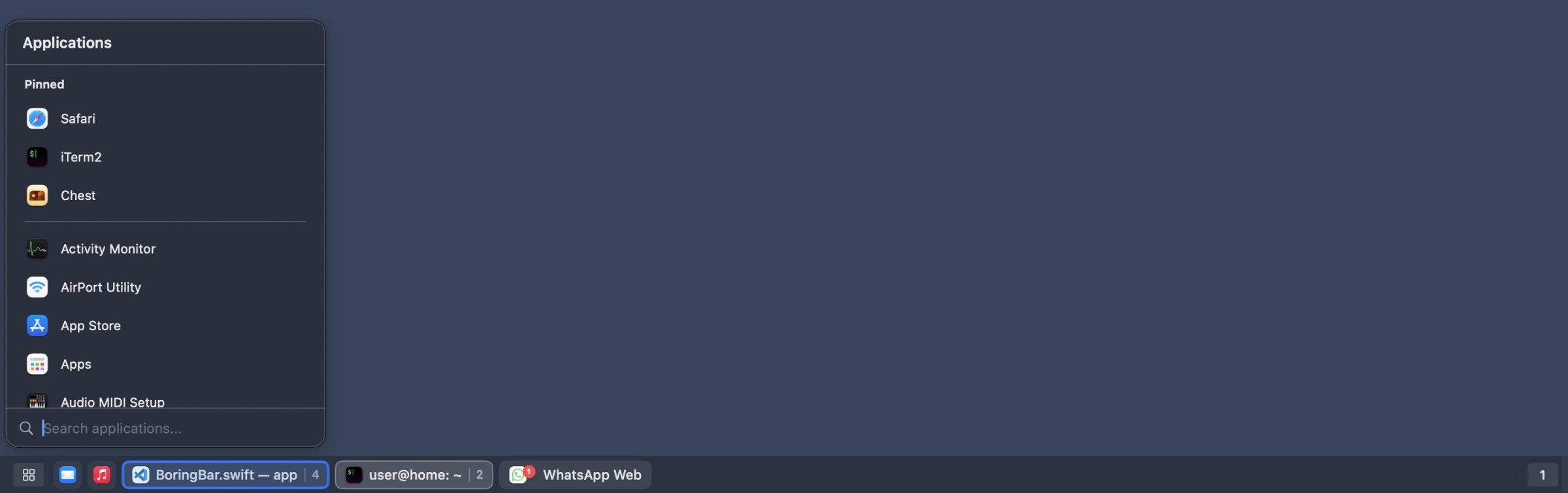
⤢boringBar’s taskbar, with its app launcher open. Note the pinned Chest.
boringBar replaces the Dock with a Windows-style taskbar along the bottom of your screen. If that sentence made you flinch, I get it. But hang on.
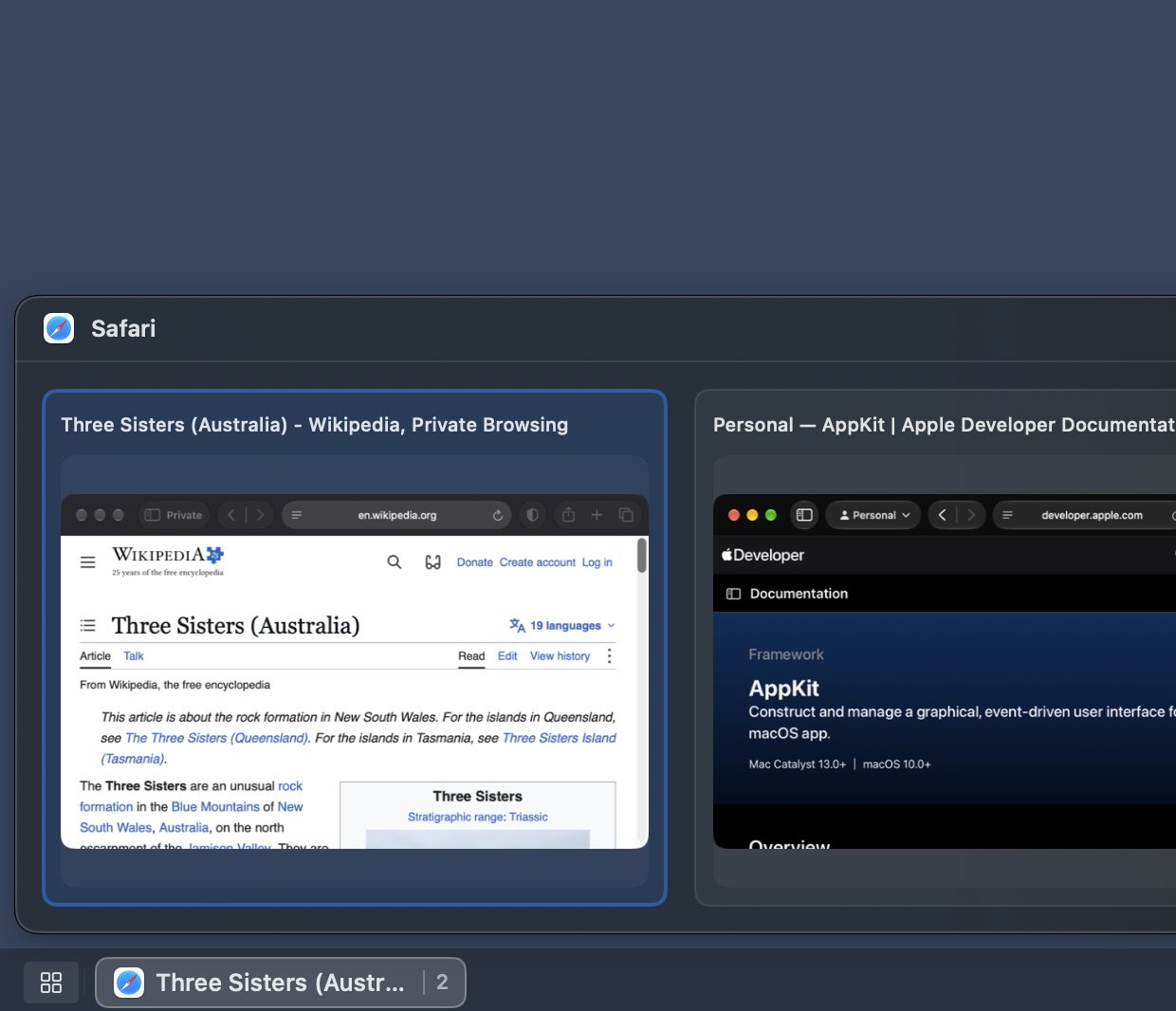
The Dock shows you apps. It doesn’t show you windows, and it has no idea which desktop or display any of them are on. boringBar gives every open window its own chip, organized by desktop, and by default shows only the windows on the desktop you’re looking at. Hover a chip to see a thumbnail of the window before you switch to it. Click the switcher at the left end and you get a one-click list of your desktops, with a count of how many windows are on each. Scroll on the bar to flip between desktops. There’s a searchable app launcher on a global shortcut, which, yes, is a Start menu. Unread badges from macOS show up on the chips, and an app that wants your attention pulses gently instead of bouncing.
⤢Hover a chip to preview its windows before you switch.
You can pin apps to the bar, group multiple windows from one app into a single chip with a count, show just icons or full window titles, pick small, medium, or large, and mirror the bar across every display. It can hide the Dock while it runs. And on Golden Gate, it grows a set of window-management tricks: ⌥-Tab jumps back to your previous window, or hold ⌥ for live previews of everything on the display under your pointer; drag a window up into the menu bar to pick a snap layout and drop it into a zone; hold your snap keys and tap an arrow to snap to a half, F to fill, or C to center; drag an edge that tiled windows share and they all resize together; and press 1 through 9 to fling the focused window to another desktop.
It needs Accessibility, plus Screen Recording for the thumbnails. The developer makes a point I like: the purple recording dot in Control Center only appears while thumbnails are being fetched, so you can verify for yourself that the app isn’t doing anything else.
boringBar’s origin story is a familiar indie one. The developer came to a MacBook Air from a Fedora laptop running GNOME, missed having a real taskbar, and, in their words on Hacker News this past April, “built boringBar so I would not have to use the Dock.” That Show HN post got into a long argument about pricing, because boringBar launched as a subscription and Hacker News does not care for subscriptions. The developer listened and added a perpetual license.
Pricing
Chest is free, full stop. It requires macOS 27 Golden Gate; it can’t run on anything earlier, because the switches it relies on don’t exist there.
boringBar has a 14-day free trial with everything unlocked. After that, a perpetual personal license is $29.99 for two Macs, with a year of updates; the app keeps working after the year, you just stop getting new versions. Or there’s a yearly plan at $7.99 for one Mac, plus $2 a year for each additional Mac, up to five. Business licenses start at six users for $20.99 a year. boringBar runs on macOS 14 Sonoma or later, though the window switcher, snap layouts, and the other window-management features need macOS 27. Both apps are direct downloads from the developer, not the Mac App Store, which makes sense: Neither could do its job from inside the sandbox.
If Golden Gate broke your menu bar manager, go get Chest. It costs nothing and it does the job. And if that earns the developer a little goodwill from you, boringBar is sitting right there, with a free trial, waiting to make you a taskbar person. I won’t judge.