Indie developer Greg Pierce pointed out on Mastodon that Apple’s Assistive Access features aren’t necessarily just for the people they were designed for.
And he’s right. Assistive Access has some features you might want on your iPhone right now, even if you don’t think of yourself as someone who needs accessibility features.
You may already know about Assistive Access as something that can make an iPhone much easier for an elderly parent or grandparent to use. It’s also potentially great for a very young iPhone user whose phone use you want to limit. And, of course, Apple designed it primarily for people with certain disabilities, who can benefit enormously from a simpler, more focused iPhone interface.
But here’s the fun part: Some of Apple’s solutions to removing complications from the standard iPhone experience are great for users at any level of cognitive or physical ability, or life stage.
Assistive Access is essentially an alternate iPhone interface hiding inside iOS. You choose which apps are available, and several of Apple’s apps transform into radically simplified versions of themselves.
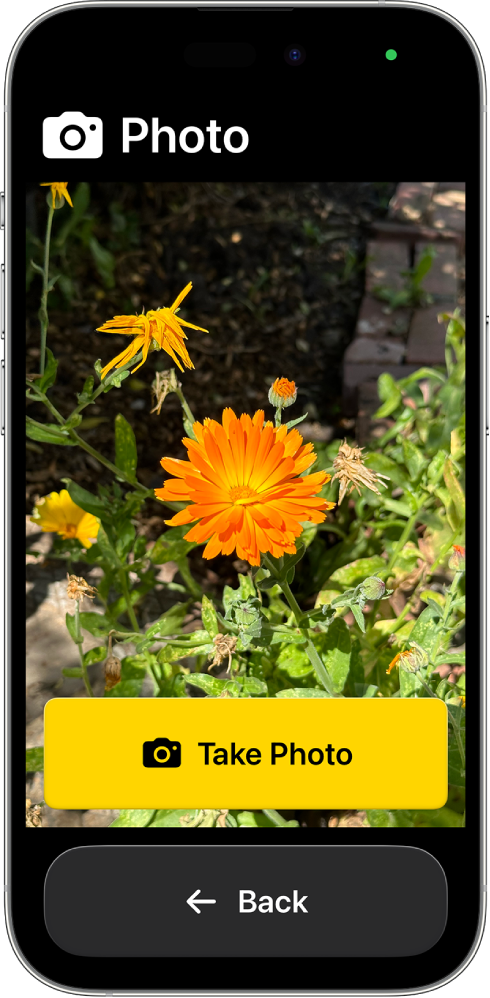
Take Camera. You can choose exactly which modes are available: Photo, Photo Selfie, Video, and Video Selfie. If you enable just one, Camera can skip all the normal choices and basically become a viewfinder with one enormous button: TAKE PHOTO.
That’s delightful if you never fuss with the other settings in the Camera app.
I know how to use the regular Camera app. I know what the buttons do. I use them! But sometimes they’re honestly annoying — they don’t respond fast enough, or I can’t swipe between them as easily as I want. Sometimes I don’t need modes and settings and options. I want to point my phone at something and take a picture. If you never need Apple’s fancier camera options, you’ll snap photos faster with their stripped-down version of the Camera app.
The Magnifier is what prompted Greg’s Mastodon post in the first place. It turns the iPhone camera into a digital magnifying glass, complete with extremely obvious controls for zooming in and out.
My eyesight is great, so I don’t need Magnifier on the regular. But I have had meals with folks struggling with menu fonts, and I’ve seen older relatives struggle to read their pill bottles.
And if you’re someone who spends half your life saying “Where did I put my readers?”, this could be a genuinely fantastic thing to know about.
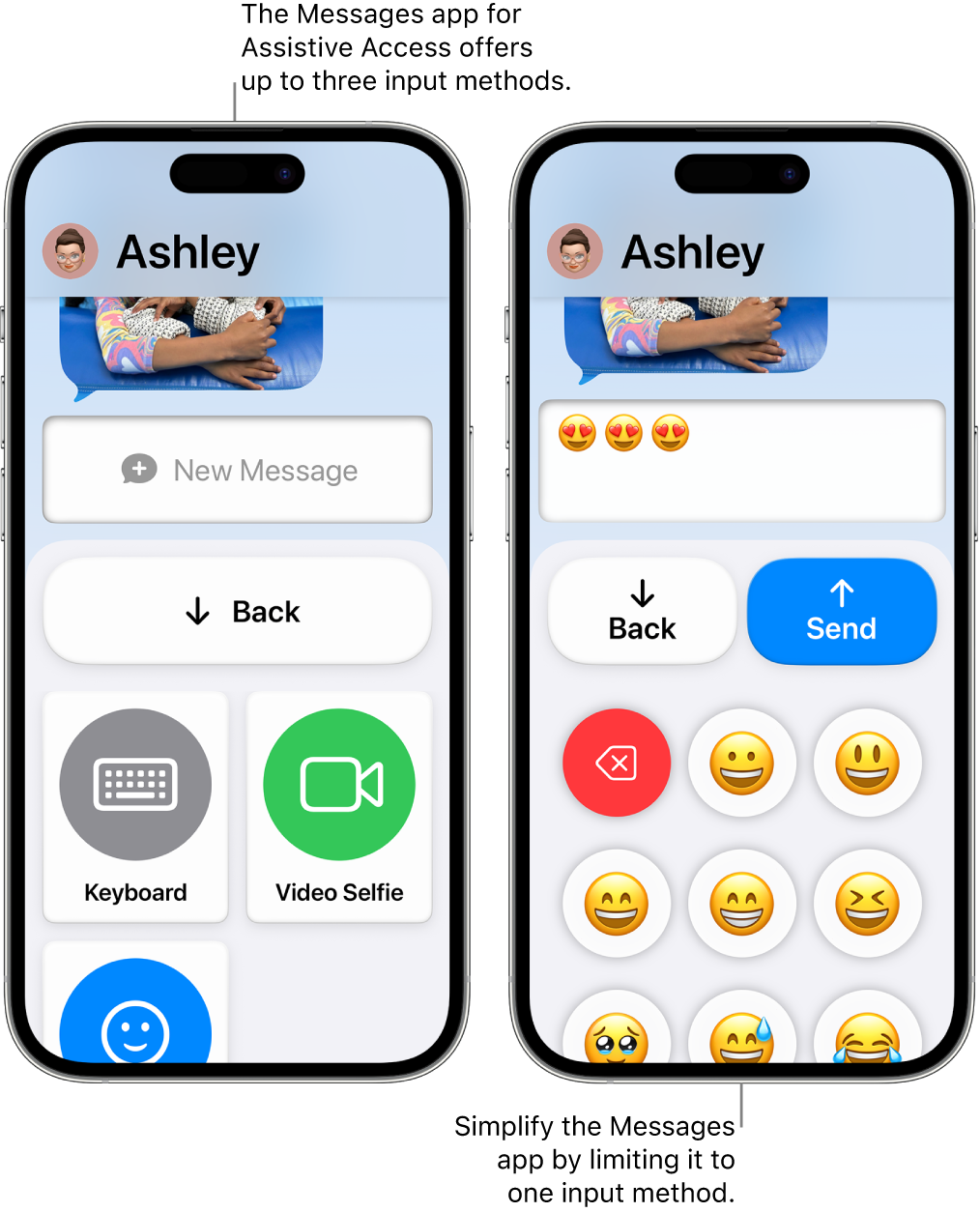
Messages with Assistive Access gets rid of a lot of cruft. You can limit the people available for messaging, make favorite contacts especially prominent, and even control the ways someone can compose a message. There’s a normal keyboard, an emoji-only keyboard, and an option to record a video selfie.
You can tap a received message to have the iPhone read it aloud.
Again, there’s an obvious accessibility benefit here. And I love the idea of hooking a young kid up with a messaging app that can just write to selected people, with a dead-simple interface.
I listen to music a lot with my iPhone, and I think that the Music app has actually gotten worse with time. I want to switch to the Assistive Access version of the Music app full-time, but it’s not quite enough for me — it can only play music you’ve pre-identified, not search the infiniteness of Apple Music’s streaming offerings.
But it’s surprisingly close. This version of the Music app basically says: Here are your songs. Pick one. That’s it.
Photos gets stripped down, too. You can have a big, simple photo grid and limit what’s available to photos taken on that iPhone and specific Shared Albums.
For an elderly relative, that’s potentially wonderful. Imagine Photos basically being “your pictures, plus the family album.” But I can imagine uses beyond that, too — particularly for an iPhone you’re repurposing for a specific job, lending to someone, or setting up for a kid.
And Calls combines Phone and FaceTime into one simplified app. Favorite people can be displayed prominently with their photos, and you can control who can make or receive calls.
There’s a pattern to all of these.
Apple built Assistive Access because sometimes the enemy of good is better: All the improvements each new iteration of iOS provides also make apps more complicated. We know many of us hate change, especially when it feels like an app’s interface is updated just for the sake of looking different. There’s some real consistency to how the Assistive Access versions of these apps look, even across iOS release updates.
Obviously, Apple can’t just use these more accessible interfaces across the board for all users; we demand more features, and powerful fiddly options, and complexities matter when your needs are, well, complex.
But the clever approach to simplified UIs that these variants offer is a solid reminder that sometimes simplicity is a win. If that quote about if I had more time, I’d have written a shorter letter (attributed to many, many people) resonates with you at all, I think there’s something to the idea that if developers had more time, they’d have simpler interfaces.
Every one of these simplified versions of Apple apps has at least some design decisions that are upgrades to the standard versions of these apps, even if these versions aren’t workable for full-time use. There’s something worth learning from the versions of these apps where Apple intentionally took some things away.