Indie developer spotlight: Aptonic’s Dropzone 5 makes triaging files snappy
A menu bar grid for dragging files to folders, apps, and actions on the Mac.
Drag and drop and the Mac go together like chocolate and peanut butter, or Philadelphia Eagles fandom and wild emotional swings by season. With drag and drop, as every Mac user knows, you click on a thing, drop it in another spot, and… something happens. Drag and drop is good.
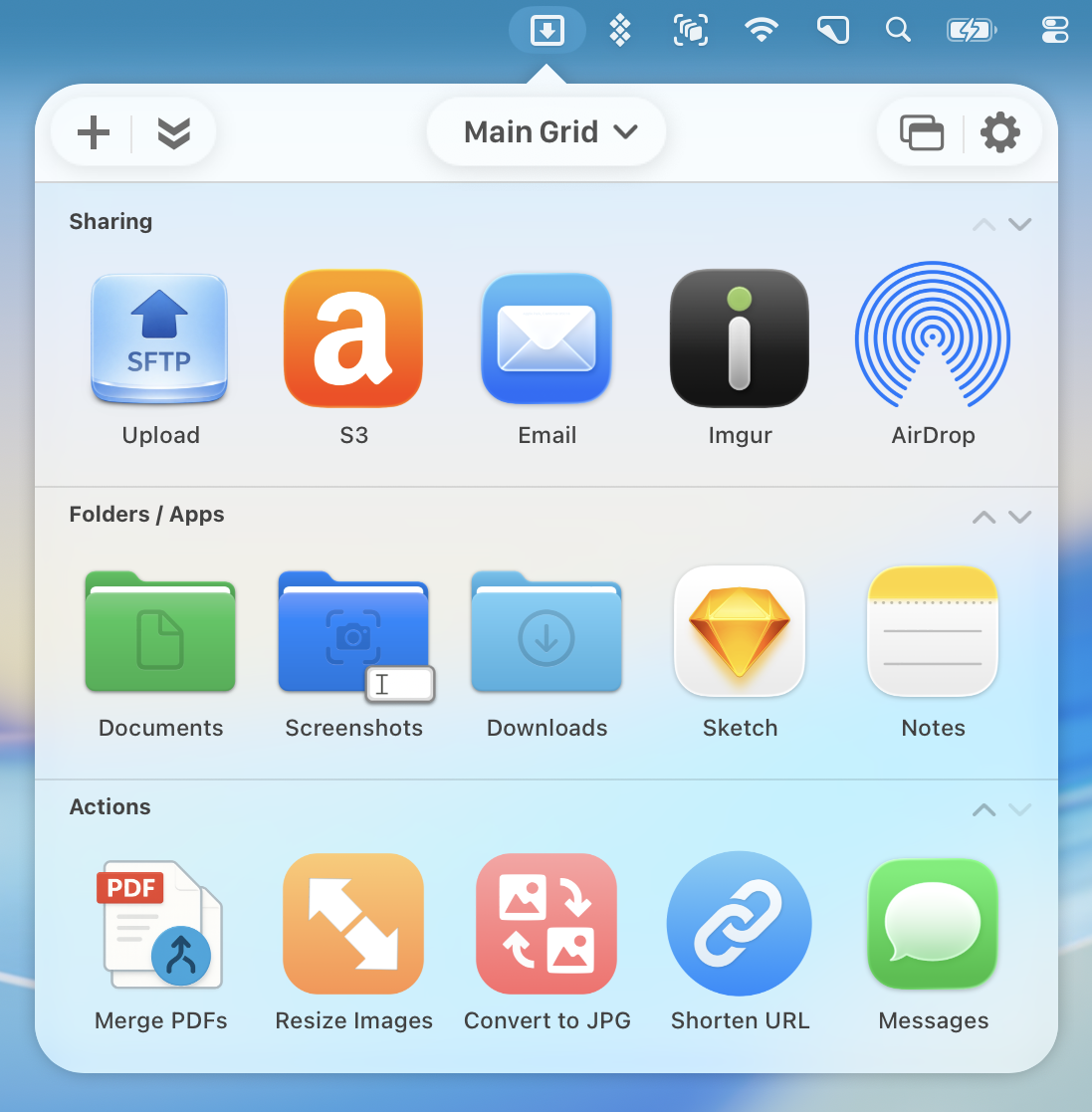
Dropzone, from Aptonic, makes it better. Dropzone launched back in 2009, and I’m pretty impressed at how far it’s come — the latest version, Dropzone 5, shipped earlier this year. When you start to drag a file on a Mac with Dropzone installed and nudge your cursor up toward the menu bar, a grid of destinations drops down: folders, apps, and actions. Release the thing you’re dragging on one, and your file gets moved, copied, opened, uploaded, resized, AirDropped, or whatever else you’ve set it up to do.
How you configure Dropzone’s landing grid determines how useful the app can be for you. When you first install the app, that grid is split into categories: sharing, folders and apps, and actions — and you can rename, reorder, and add as many categories as you like.
Folders and apps work the way you’d expect: Drop a file on a folder to move or copy it there, or drop it onto an app to open it there.
The built-in actions go further: There’s Rename & Move, AirDrop, Create Notes, Run Shortcuts, and Install Apps. That last one handles the full drag-from-the-disk-image dance for you. There are actions to resize, convert, and compress images, to download videos from YouTube and elsewhere, and to shorten URLs. And there are uploaders for SFTP, Amazon S3, and Imgur, which hand you back a link when they’re done.
I use a few different apps for uploading files to my own servers, but Dropzone has come in surprisingly handy.
There’s a library of add-on actions you can install from inside the app. And if none of them does what you need, you can write your own in Ruby or Python; Aptonic documents the API on GitHub. And if you’re not prepared to craft your own code, of course, tools like Claude and ChatGPT can help you.
Then there’s the Drop Bar, a shelf for files in transit. Drag in a file from here, two from there, a screenshot from your desktop, and then drag the whole pile out to wherever you want to send it. (You can even have new screenshots land in the Drop Bar automatically. I’d rather my Drop Bar get messy than my desktop.)
You don’t have to drag at all, either. Click the menu bar icon, or hit F3 or a shortcut of your choosing, and the grid appears. Individual actions can get their own keyboard shortcuts, and Dropzone shows up in the Share menu of apps that support it.
What’s new in 5
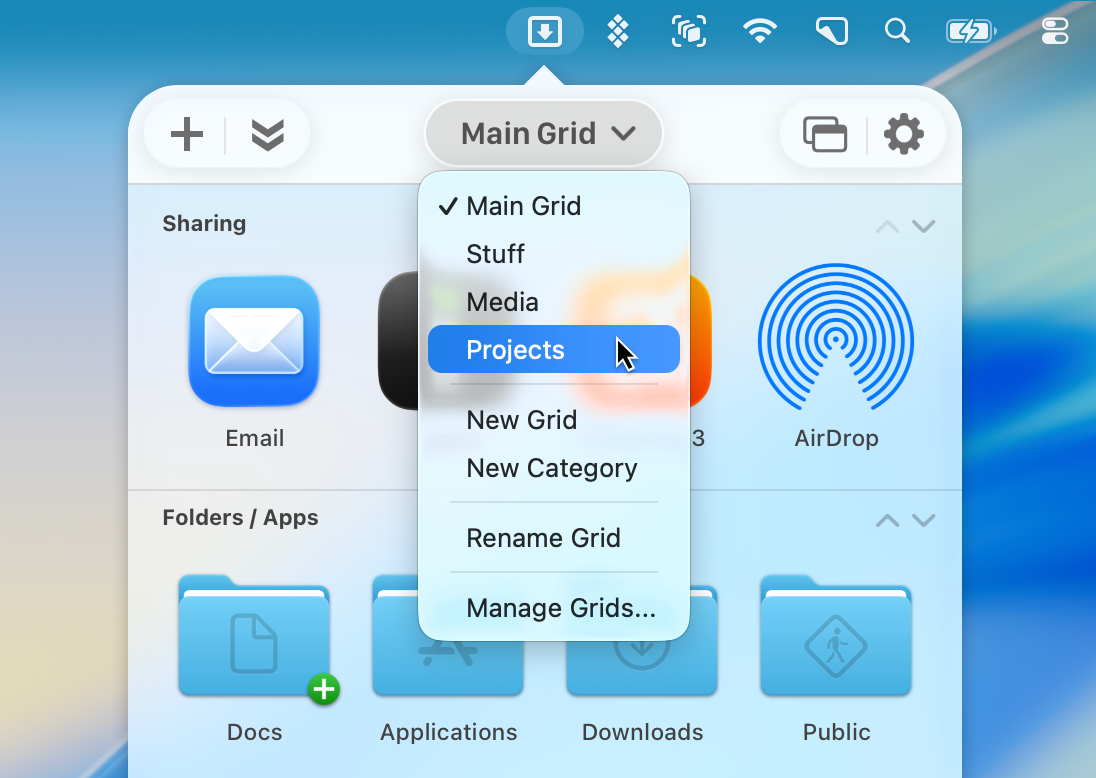
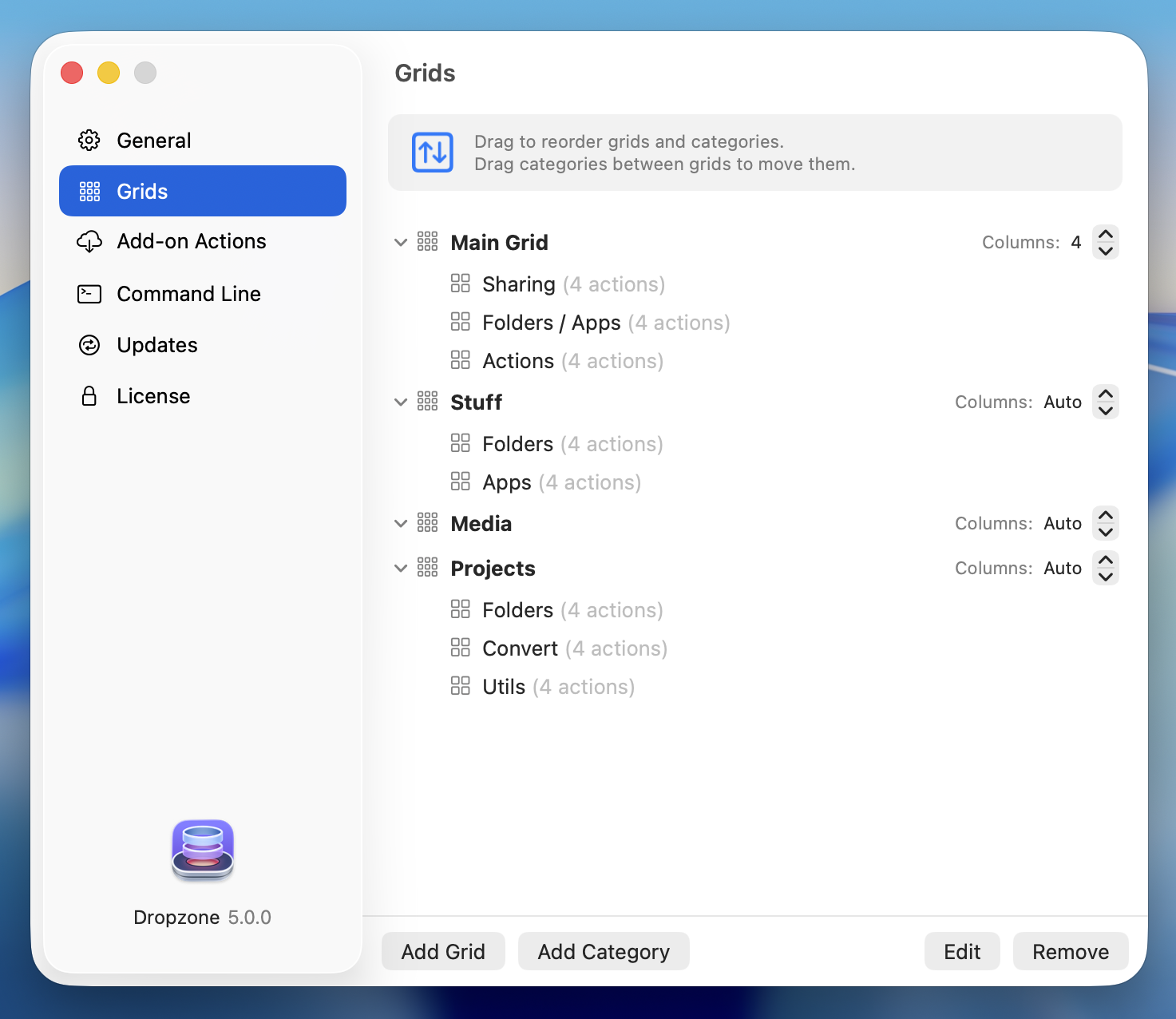
What makes Dropzone 5 more usable for me than prior versions is the concept of multiple grids. Instead of a single, overstuffed grid, you can keep separate grids for separate contexts. Aptonic’s examples are blogging, video production, and servers; mine could include one grid for app development and web stuff, a second for managing Lex on Tech, and a third for my consulting work. You switch between grids from a dropdown at the top, with the arrow keys, or with ⌘1 through ⌘9. Each grid gets its own column count, and you can move actions, categories, and Drop Bar items between them.
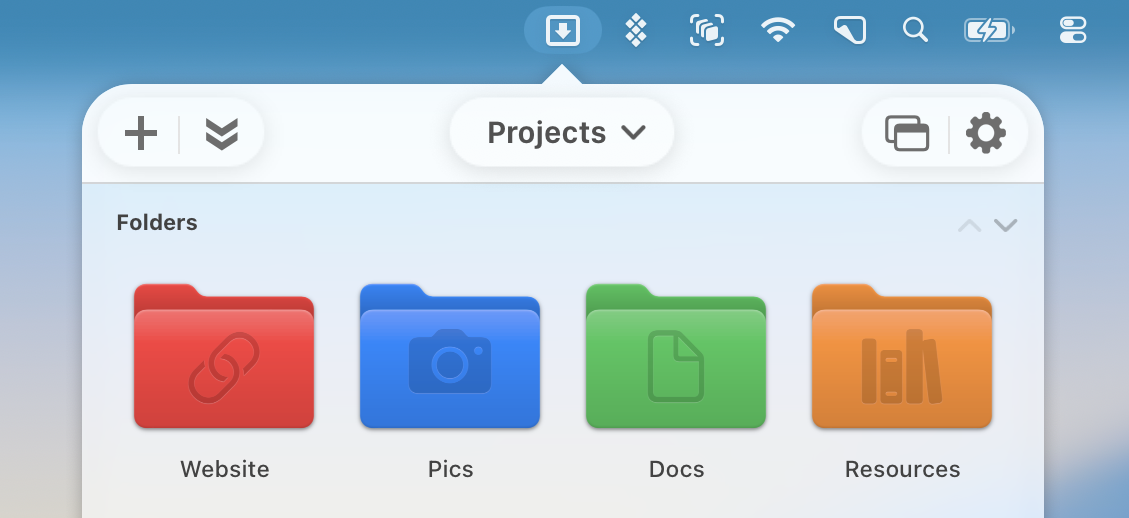
Switching between grids in Dropzone 5.Custom Finder folder colors and symbols carry over into the grid.
Dropzone has seen 18 releases between March and late October. Recent additions include a Run Script action, and Folder Monitor, which watches a folder and runs an action — or adds the new arrivals to your Drop Bar — whenever files show up in it.
Seventeen years of drops
I’m new to Dropzone, but folks I respect have loved it for a long time. Eons ago, Brett Terpstra made Dropzone a Friday Favorite at TUAW, cheering on the community building actions for it: “Don’t sweat it, let the community do it for you.” Seventeen years later, in a sponsored post on his own site this March, Brett wrote, “I’ve been a Dropzone fan for as long as I can remember, and yes, I use it every day.” I appreciate that he’s remained a fan since 2009.
My pal Dan Moren covered Dropzone for Macworld way back in 2012, and even then found that “the utility of Dropzone is multiplied by its extensibility.” And when Macworld’s J.R. Bookwalter reviewed Dropzone 4 in 2020, he wrote, “Now that the best parts of Dropzone 4 are free, there’s simply no reason not to install this must-have menubar utility.” His one real complaint was that the Pro features were subscription-only. Dropzone 5 addresses that directly, with a lifetime license.
Dropzone 5 is a free download from Aptonic, the Mac App Store, or Setapp. The free version gets you the grid, your folders and apps, and a solid set of built-in actions. Dropzone 5 Pro adds the heavier hitters, like SFTP and S3 uploads, keyboard shortcuts for actions, and the Share menu integration, and you can try it free for 14 days.
Pro is a $35 lifetime license direct from Aptonic. On the Mac App Store, it’s $4.99 a month, $19.99 a year, or $34.99 for life. If you own Dropzone 4, Aptonic offers upgrade pricing of up to 50 percent off. It requires macOS 13 Ventura or later.